

Installed
You are all set.
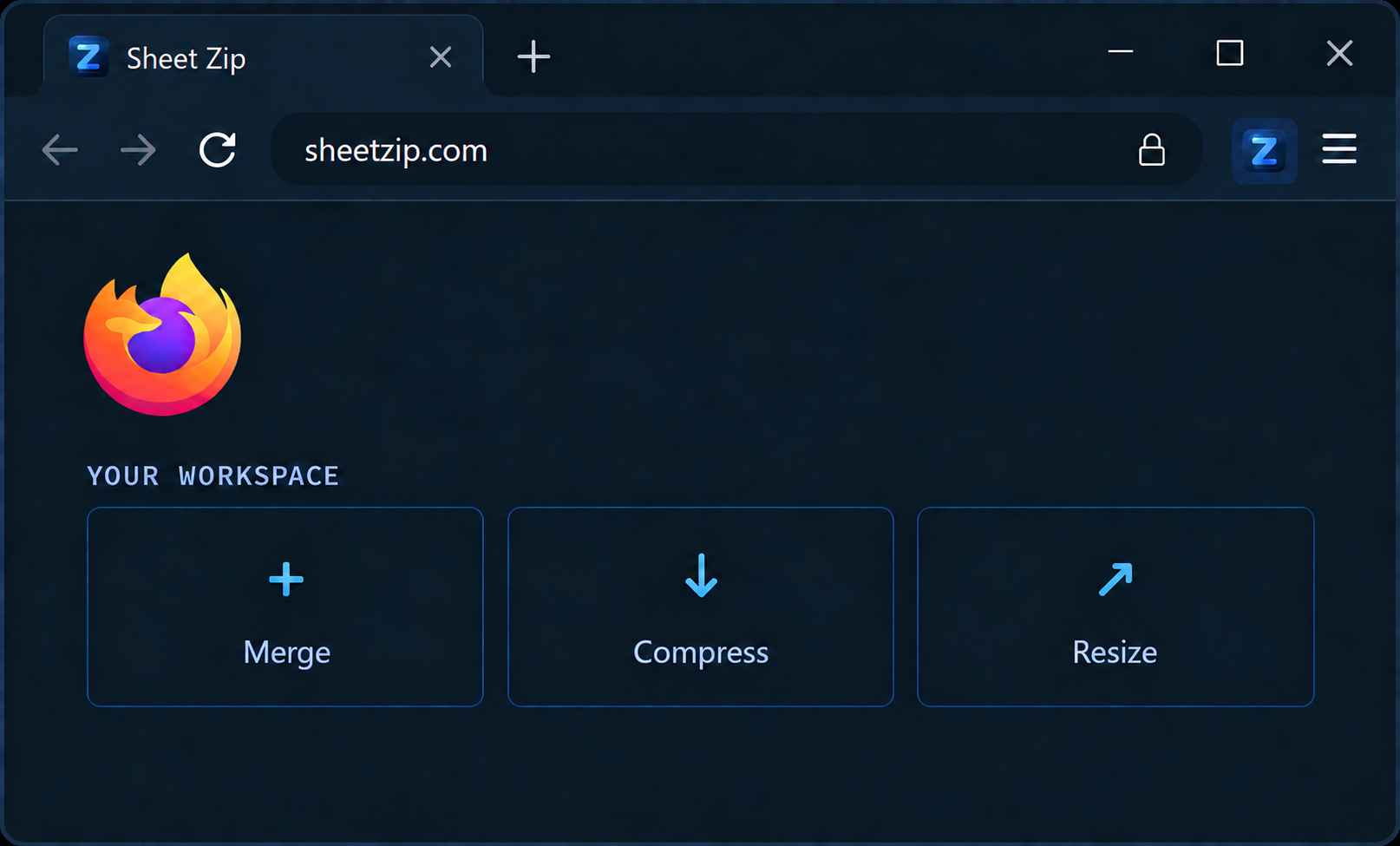
Sheet Zip is installed. Click the Sheet Zip button in your Firefox toolbar whenever you need it, and the workspace opens in a new tab.
A good first job
Open the workspace
The Sheet Zip button sits in your toolbar. If you cannot see it, open the Firefox extensions menu and pin Sheet Zip so it stays visible.
Drag in a few PDFs
Pick Merge, drag the files into the order you want, and run it. That one job covers most of what people install a PDF tool for.
Try Compress on a big scan
Start with the careful mode, which keeps your text selectable. The stronger mode goes further but flattens the pages, and it tells you so first.